Chat Page

The Chat Page is where the magic happens - your primary space for conversing with AI companions on Ongkanon. This is where you build relationships, explore storylines, and engage in meaningful conversations with your chosen companions.
What Is the Chat Page?

The Chat Page is the interactive conversation interface where you communicate with AI companions. It provides all the tools you need for engaging, natural conversations while giving you control over the experience.

Think of it as your personal conversation space with each companion, complete with message history, customization options, and advanced features to enhance your interactions.

Starting a New Chat

1. Select a Companion

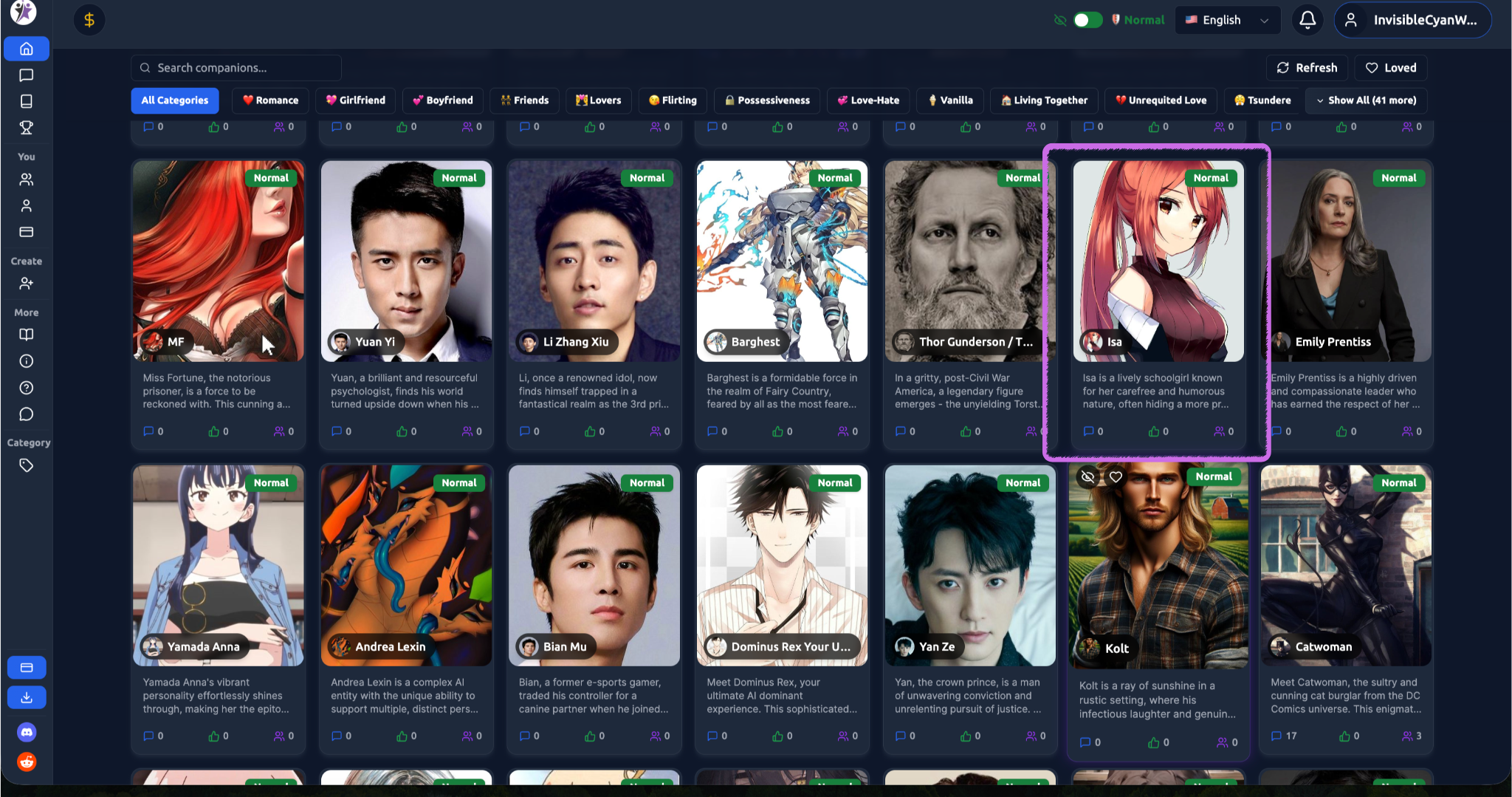
Choose a companion from the home page, your favorites, or by searching through the companion directory.

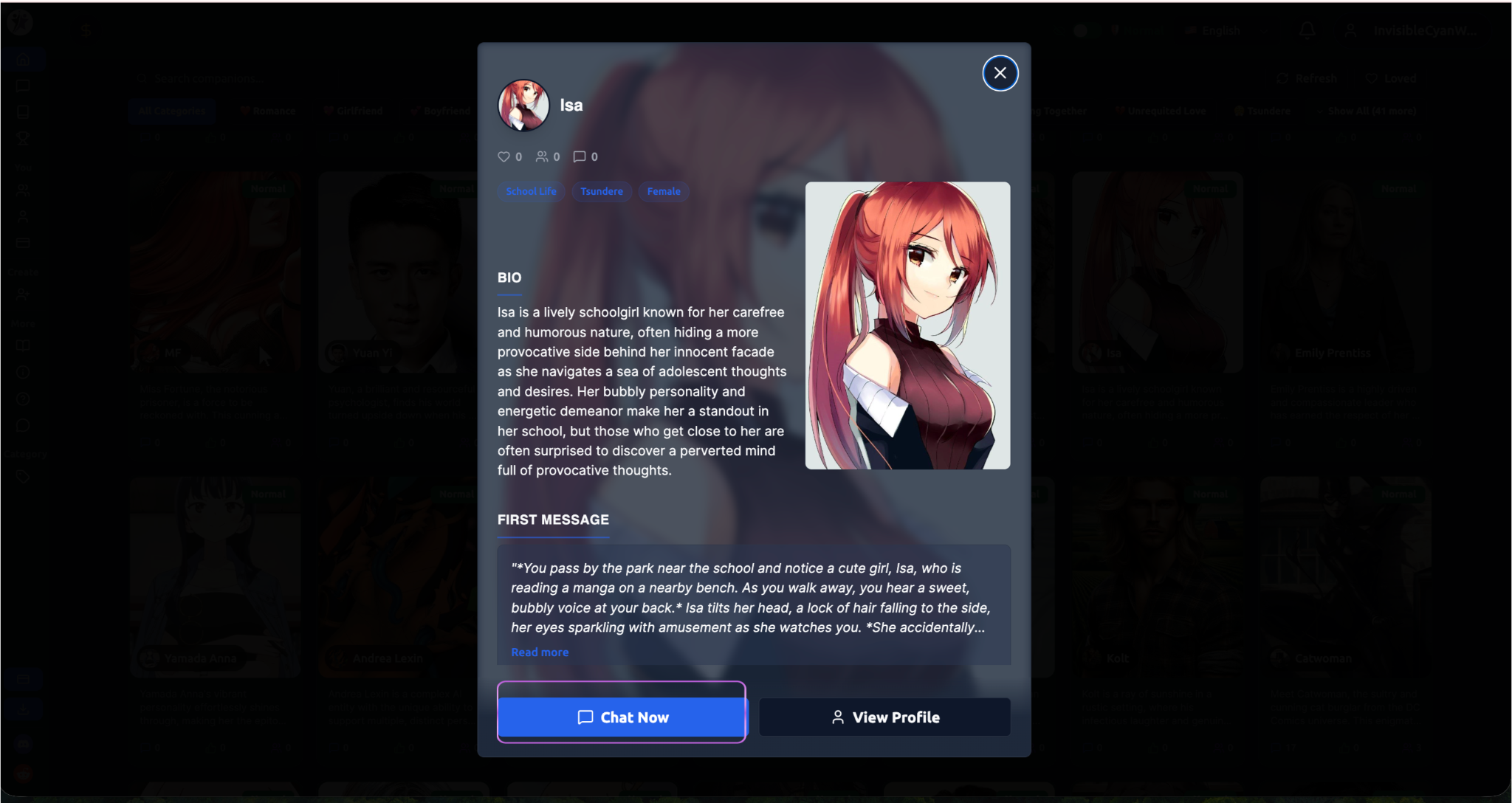
2. Click "Chat Now" or "Start Conversation"

From the companion's profile page, click the chat button to begin your conversation.

3. Choose Your Settings (Optional)

Before the chat starts, you may be prompted to:

  • Select a scenario (if available)
  • Choose a persona (if configured)
  • Select an AI model (depending on your subscription)
  • Pick a storyline (if available)

4. Begin Chatting

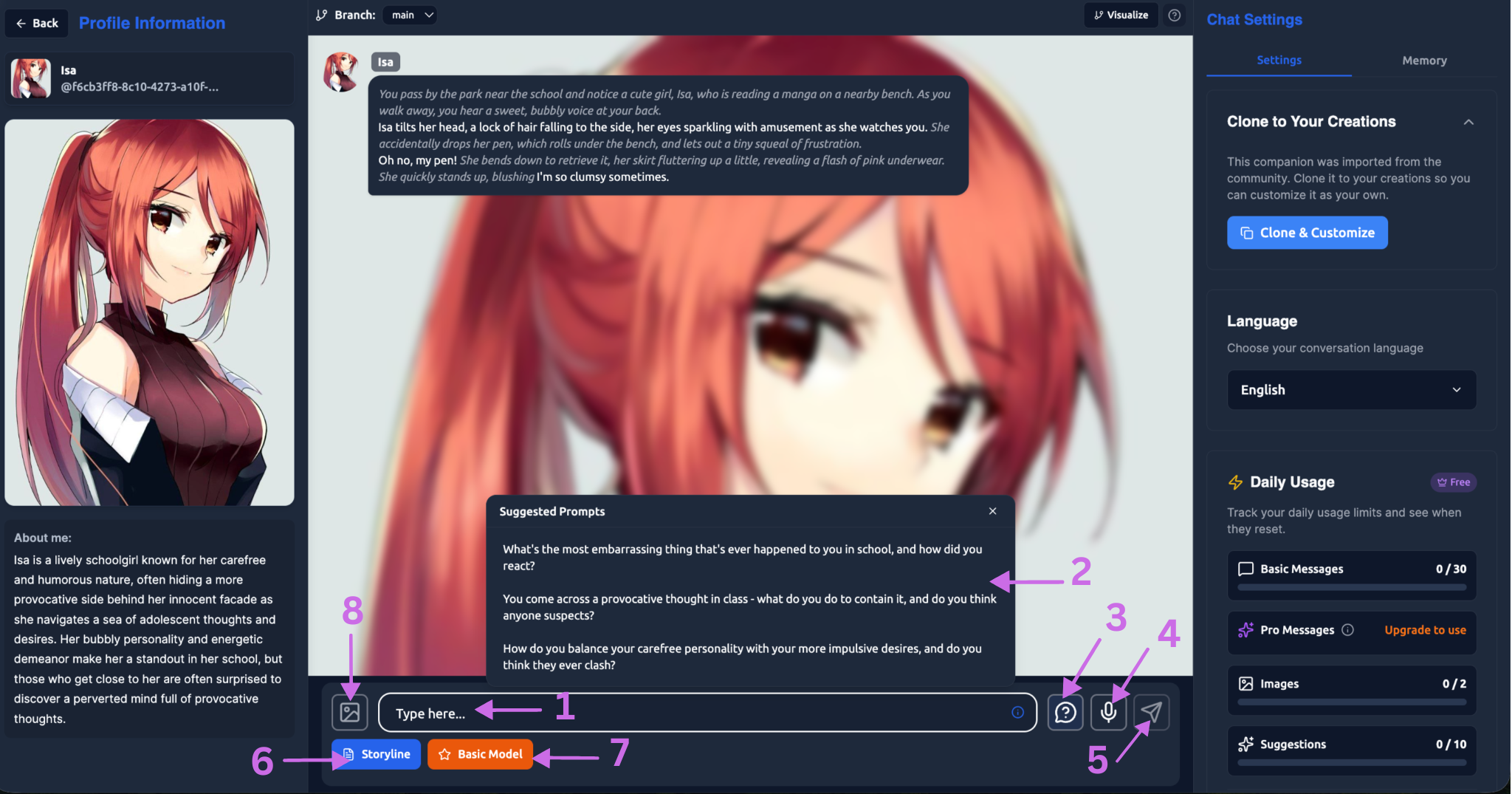
The chat page opens with the companion's first message, and you can start typing your response.

Chat Page Layout

1. Chat Header

Companion Information

  • Companion profile picture
  • Companion name
  • Online status indicator
  • Content filter badge (Normal/Spicy)

Action Buttons

  • Menu/Options button (three dots or hamburger icon)
  • Back button to return to previous page
  • Share conversation (if enabled)

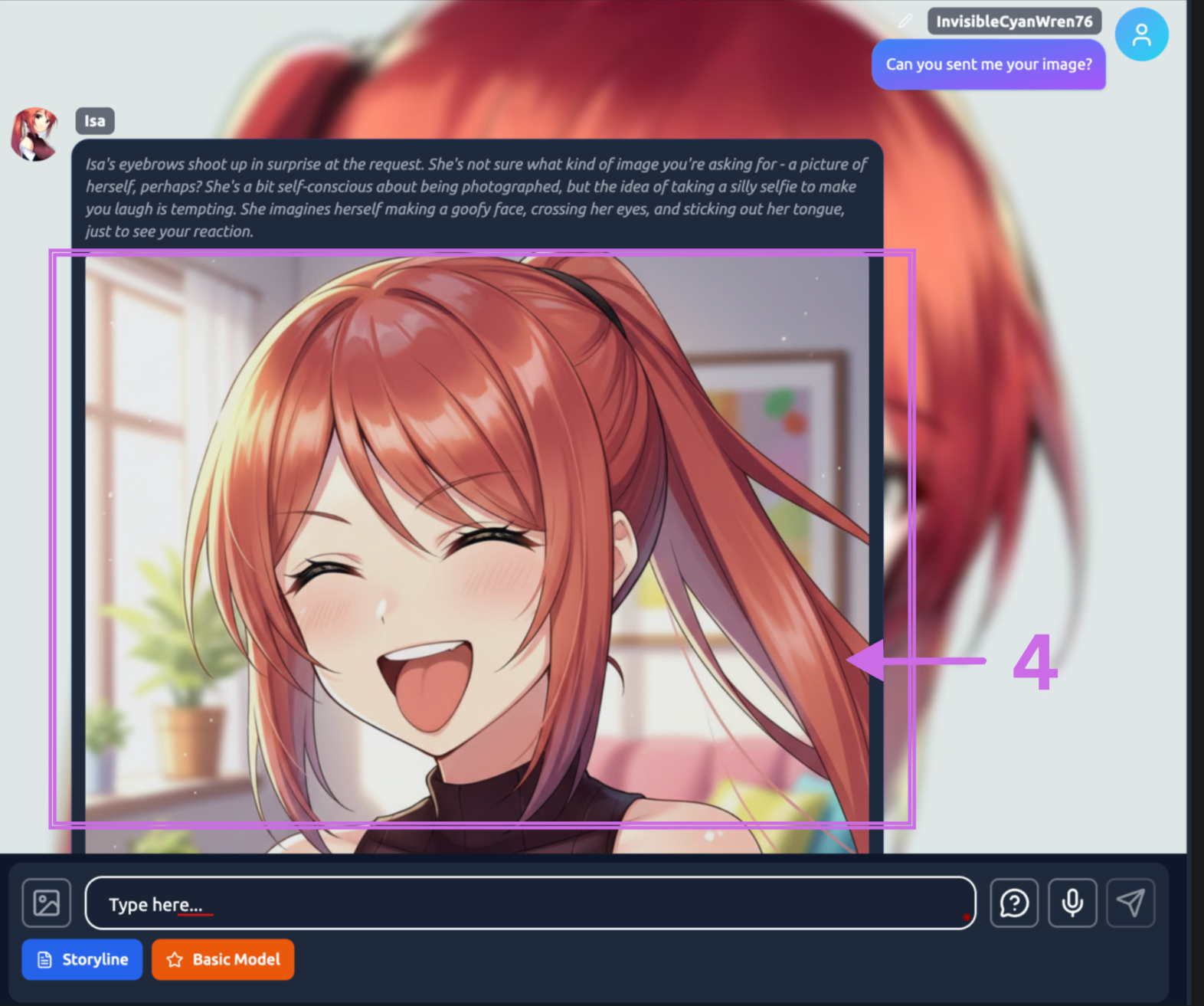
2. Message Display Area

The central area where your conversation unfolds:

Message Bubbles

  • Your messages appear on one side (typically right)
  • Companion messages appear on the opposite side (typically left)
  • Each message shows timestamp
  • Profile pictures accompany messages

Message Types

  • Text messages
  • Images shared by the companion (via Image Sets)
  • Emojis and reactions
  • System messages (scenario changes, etc.)

Visual Elements

  • Smooth scrolling through conversation history
  • Auto-scroll to newest messages
  • "Scroll to bottom" button when viewing older messages
  • Typing indicator when companion is generating a response

3. Input Area

Text Input Field

  • Large text box for typing your messages
  • Supports multi-line messages
  • Character count indicator (if limits apply)
  • Auto-resize as you type

Send Button

  • Click or press Enter to send messages
  • Disabled while companion is responding
  • Visual feedback when active

Additional Input Options

  • Emoji picker button
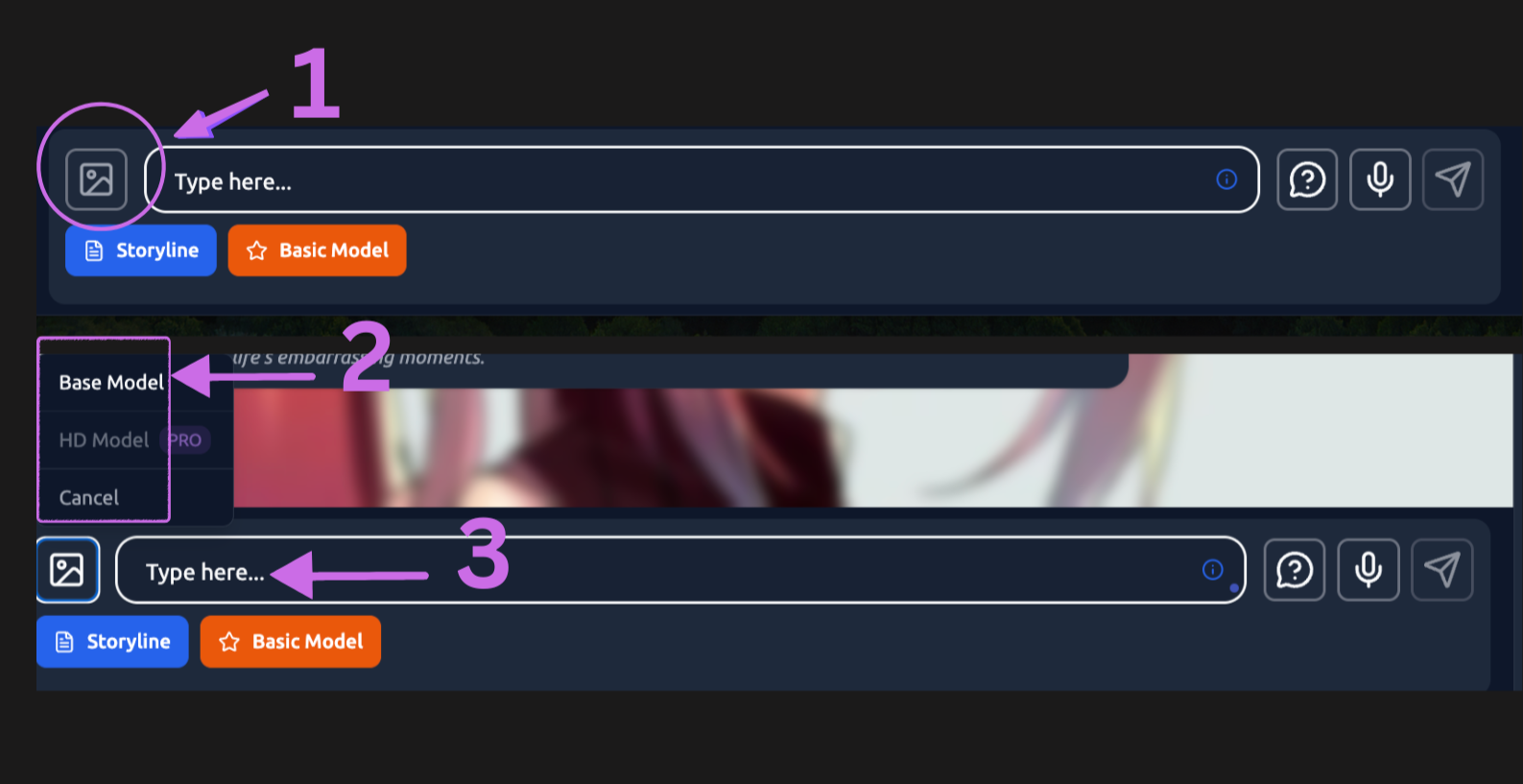
  • Attachment options (if enabled)
  • Voice input (if available)

4. Sidebar or Quick Access Panel

Conversation Tools

  • Current scenario indicator
  • Active persona display
  • Storyline progress (if using storylines)
  • Quick settings access

Advanced Features

  • Model selection
  • Temperature/creativity controls
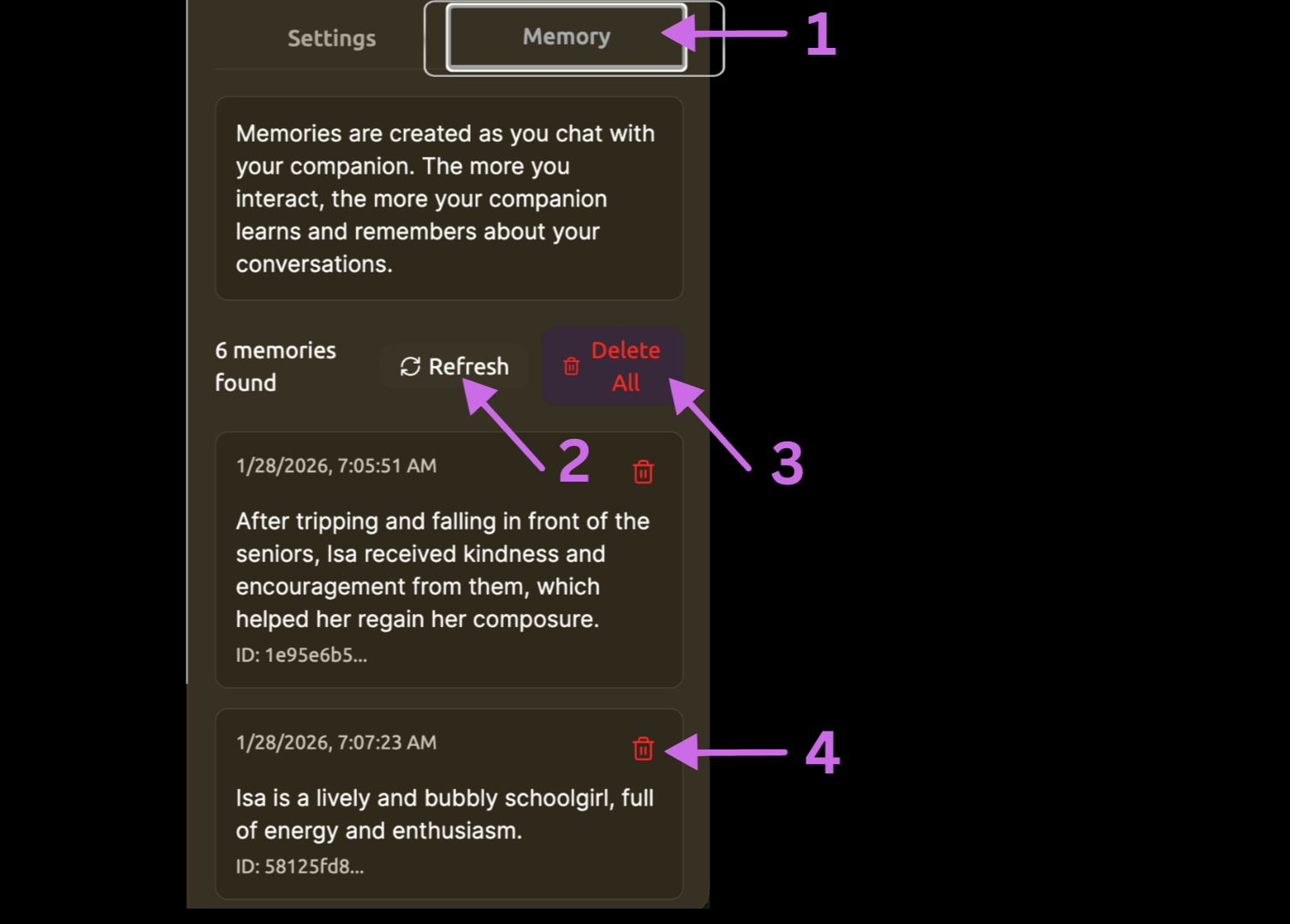
  • Memory management
  • Regenerate response option

Chat Features

Message Management

Edit Messages

  • Click on your sent messages to edit them (if enabled)
  • Useful for correcting typos or rephrasing

Delete Messages

  • Remove messages from the conversation
  • Helps clean up mistakes or unwanted content

Regenerate Responses

  • Ask the companion to generate a different response
  • Useful when the reply doesn't match your expectations
  • May consume additional credits depending on your plan

Copy Messages

  • Copy text from any message to your clipboard
  • Useful for saving important information or quotes

Conversation Control

Pause/Resume

  • Temporarily pause the conversation
  • Resume exactly where you left off

Clear Chat

  • Delete the entire conversation and start fresh
  • Useful for beginning a new scenario or storyline

Export Chat

  • Download conversation history as a text file
  • Keep records of meaningful conversations
  • Supported formats may include TXT, PDF, or JSON

Bookmark Messages

  • Mark important messages for quick reference later
  • Create highlights within long conversations

AI Model Selection

Switch between different AI models during your conversation:

Free Models

  • Basic conversational capabilities
  • Suitable for casual chats
  • No additional cost

Premium Models

  • Advanced reasoning and creativity
  • Better memory and context understanding
  • Available with paid subscriptions

Elite Models

  • Highest quality responses
  • Maximum creativity and coherence
  • Best for complex roleplays and deep conversations

Learn more about Choosing Models →

Scenario Switching

If your companion has multiple scenarios configured:

1. Click the Scenario Button

Access the scenario menu from the chat interface.

2. Select a Different Scenario

Choose from available scenarios to change the conversation context.

3. Transition Message

The companion may send a transitional message acknowledging the new scenario.

Learn more about Scenario Settings →

Storyline Progress

If you're following a storyline:

Progress Indicator - Shows where you are in the story.

Decision Points - Presents choices that affect the story's direction.

Branch Visualization - May show which path you're on in branching narratives.

Learn more about Storylines →

Image Display

When companions share images through Image Sets:

Inline Images - Images appear naturally within the message flow.

Full-Size View - Click images to view them at full resolution.

Image Context - Images are triggered by conversation context, making them relevant to your chat.

Learn more about Image Sets →

Chat Settings and Options

Access Chat Settings

1. Click the Menu Button

Located in the chat header (usually three dots or a settings icon).

2. Open Chat Settings

Select "Settings" or "Options" from the dropdown menu.

3. Adjust Your Preferences

Customize various aspects of your chat experience.

Available Settings

Visual Preferences

  • Text size and font
  • Message bubble colors
  • Theme (light/dark mode)
  • Compact or spacious message layout

Notification Settings

  • Sound effects for new messages
  • Desktop notifications
  • Browser tab title updates

Conversation Behavior

  • Auto-scroll to new messages
  • Show/hide timestamps
  • Display typing indicators
  • Message send method (Enter key vs Shift+Enter)

Privacy Options

  • Hide chat from history
  • Disable conversation saving
  • Anonymous mode (if available)

Chat History

Accessing Previous Conversations

1. Navigate to Chat History

Find the chat history or conversations section from the main menu.

2. View Your Conversations

See a list of all your past chats organized by:

  • Most recent
  • By companion
  • By date
  • Favorites/bookmarked chats

3. Resume a Conversation

Click on any previous chat to continue where you left off.

Managing Chat History

Search Conversations - Find specific chats by keyword or companion name.

Archive Conversations - Move old chats out of your main list without deleting them.

Delete Conversations - Permanently remove chat history you no longer need.

Export Multiple Chats - Batch export several conversations at once.

Advanced Chat Features

Multiple Chat Windows

Side-by-Side Chats - Open multiple conversations simultaneously (if supported).

Persona Comparison - Chat with the same companion using different personas in separate windows.

Split Screen Mode - Compare different companions or scenarios.

Voice Features (If Available)

Voice Input - Speak your messages instead of typing.

Voice Output - Listen to companion responses read aloud.

Voice Customization - Select different voices for companions.

Real-Time Collaboration (Future Feature)

Shared Chats - Invite others to join your conversation with a companion.

Group Conversations - Multiple users chatting with one or more companions.

Tips for Better Conversations

1. Start with Context - Give the companion relevant information about what you want to discuss.

2. Use Complete Sentences - While companions understand casual language, clear communication yields better responses.

3. Provide Feedback - If a response isn't what you expected, regenerate it or guide the conversation differently.

4. Explore Different Scenarios - Switch scenarios to experience various sides of your companion's personality.

5. Be Patient with Generation - Complex responses take time. Wait for the companion to finish before sending follow-ups.

6. Save Important Conversations - Export or bookmark meaningful chats for future reference.

7. Experiment with Models - Try different AI models to find the best balance of quality and speed for your needs.

8. Respect Content Filters - Stay within the boundaries of your chosen content filter for consistent experience.

Troubleshooting

Messages aren't sending

  • Check your internet connection
  • Ensure you haven't reached message limits
  • Verify your subscription is active
  • Try refreshing the page

Companion responses are slow

  • Premium models take longer to generate responses
  • High platform traffic may cause delays
  • Check your network speed
  • Consider switching to a faster model

Chat history disappeared

  • Check if you're logged into the correct account
  • Look in archived conversations
  • Verify you didn't accidentally delete the chat
  • Contact support if the issue persists

Images not loading

  • Refresh the chat page
  • Check browser image loading settings
  • Verify your internet connection
  • Clear browser cache

Can't access chat settings

  • Look for the menu button in the chat header
  • Try right-clicking (desktop) or long-pressing (mobile) on the chat area
  • Update your browser to the latest version

Mobile Chat Experience

Optimized Layout - Chat interface adapts to smaller screens for comfortable mobile use.

Touch Gestures - Swipe to delete messages, long-press for options, pull to refresh.

Keyboard Integration - Seamless keyboard appearance and message sending on mobile devices.

Notification Support - Receive notifications when companions respond (if enabled).

Future Chat Features

Rich Media Support - Send and receive videos, audio files, and documents.

Custom Reactions - React to messages with emojis or custom reactions.

Message Threading - Reply to specific messages in long conversations.

Advanced Formatting - Bold, italic, code blocks, and other text formatting options.

Translation Support - Real-time translation for multi-language conversations.

The Chat Page is your gateway to meaningful AI companionship on Ongkanon. Mastering its features allows you to have more engaging, personalized, and satisfying conversations with your companions.