How to Change Theme Color
Ongkanon allows you to personalize your experience by changing the theme color. You can switch between Light Mode and Dark Mode to match your preferences and reduce eye strain during different times of the day.
Changing Your Theme Color
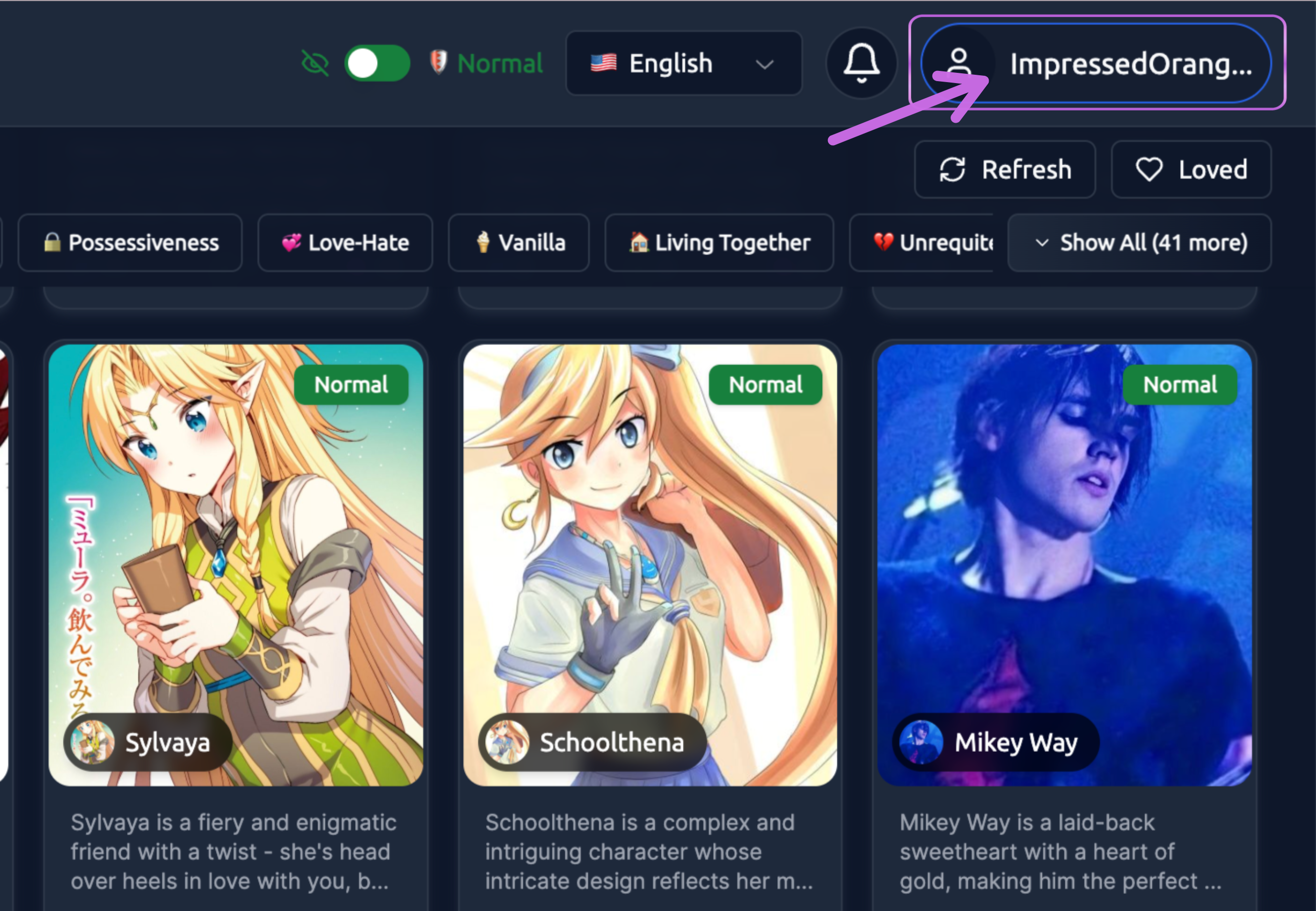
1. Click on the Profile name.
2. Click the Selct Theme Button
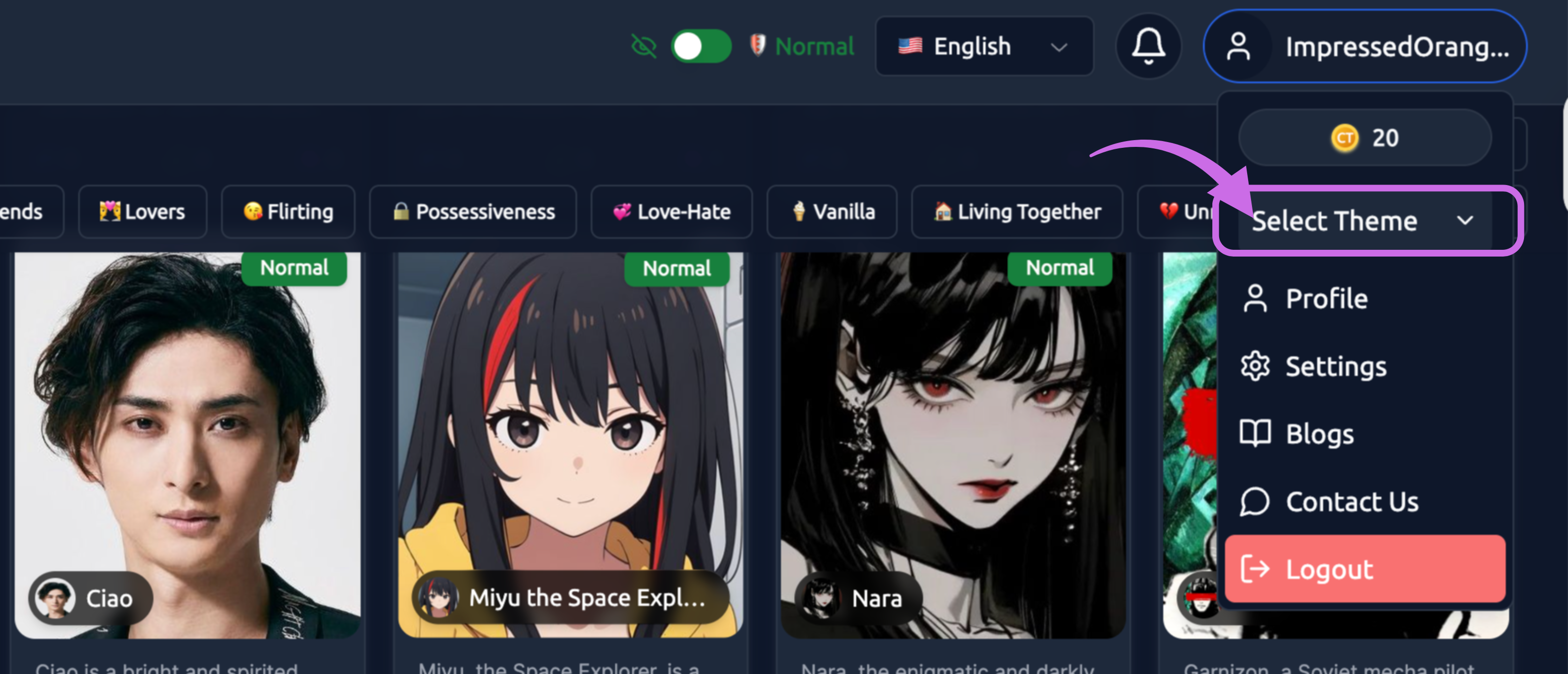
Simply click on the 'Select Theme' icon to switch between Light Mode and Dark Mode.
3. Confirm the Theme Change
The theme will change instantly across the entire platform. All pages, chat interfaces, and companion creation screens will update to reflect your chosen theme.
Theme Options
Light Mode
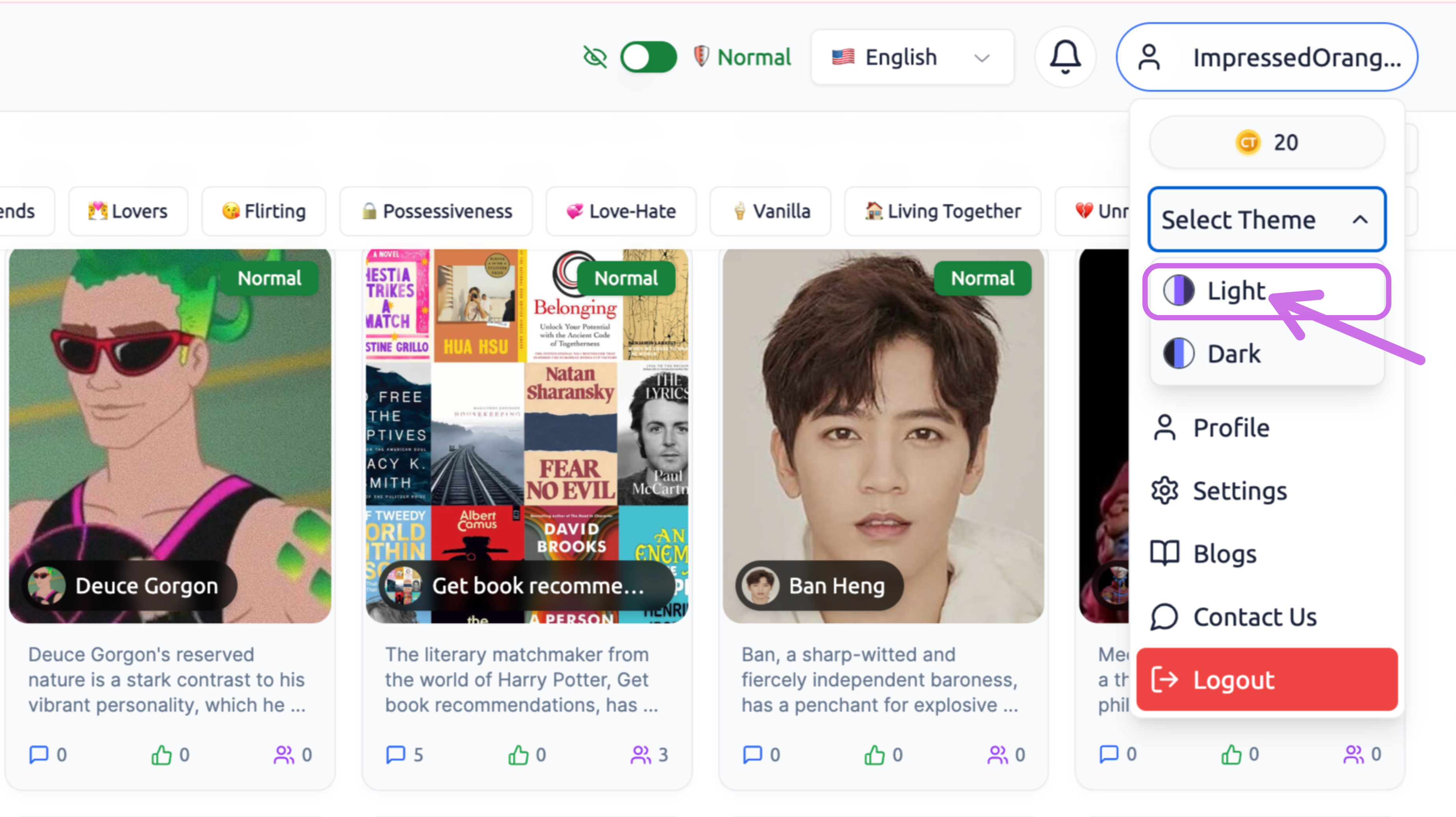
Light Mode features a bright, clean interface with:
- White or light gray backgrounds
- Dark text for optimal readability
- Softer shadows and borders
- Ideal for daytime use or well-lit environments
Benefits of Light Mode:
- Better visibility in bright environments
- Reduced glare on some screen types
- Traditional, familiar reading experience
- Higher contrast for certain visual elements
Dark Mode
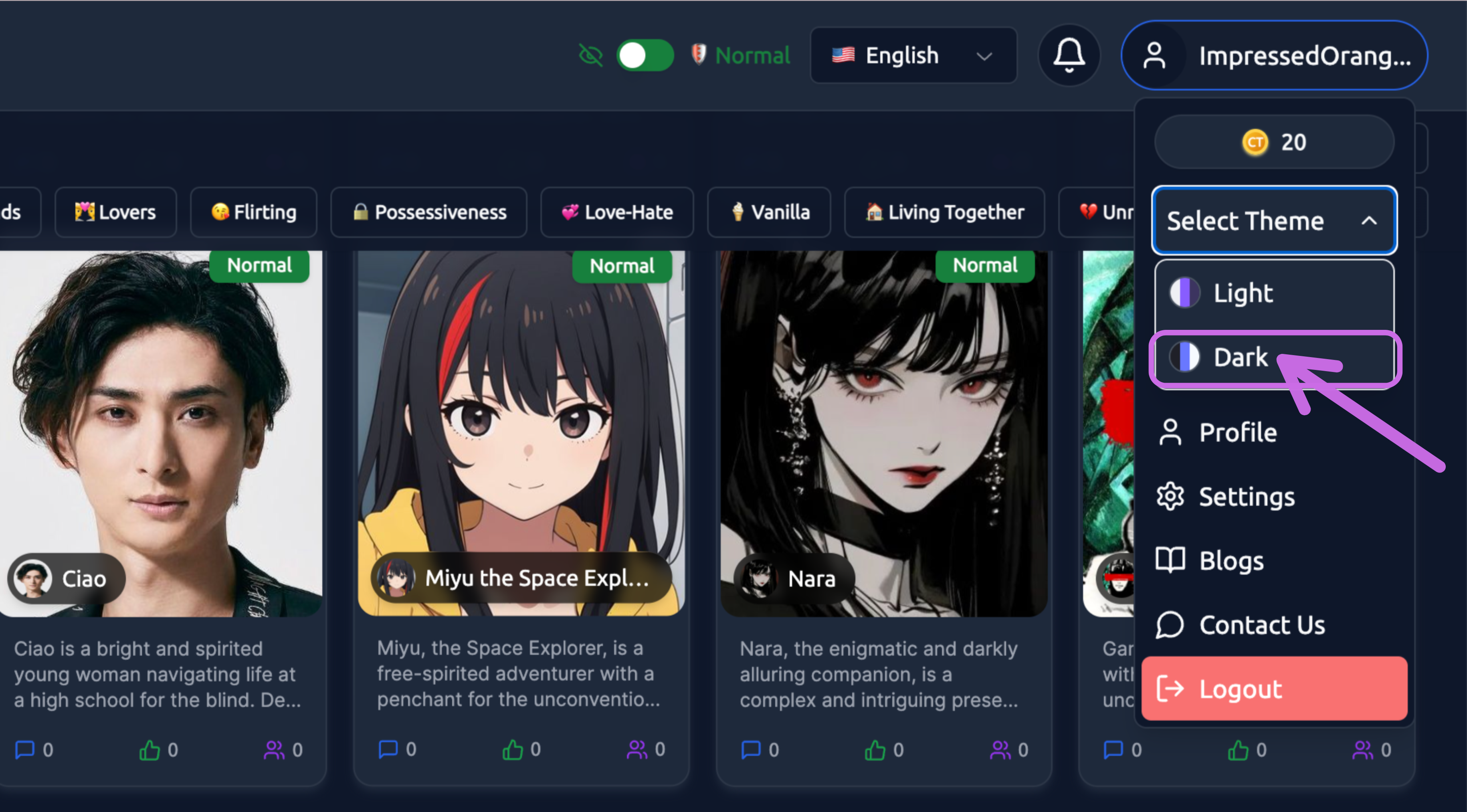
Dark Mode provides a darker interface with:
- Dark gray or black backgrounds
- Light text for comfortable reading
- Reduced screen brightness
- Ideal for nighttime use or low-light environments
Benefits of Dark Mode:
- Reduces eye strain in low-light conditions
- Saves battery life on OLED/AMOLED screens
- Creates a more immersive chat experience
- Modern, sleek aesthetic
The theme color feature ensures that your Ongkanon experience is comfortable and visually appealing, no matter when or where you use the platform.