How to Create a Companion
Your companion will remember your conversations, adapt to your preferences, and develop a unique personality shaped by your interactions. Whether you’re seeking creative inspiration, emotional support, roleplay partners, or simply engaging conversation, Ongkanon’s companion creation tools put complete customization in your hands. This guide walks you through creating AI companions from initial setup to advanced features, with practical tips for building truly engaging personalities. By the end, you’ll understand how to leverage Ongkanon’s privacy-first platform, next-generation memory systems, and community features to craft companions that feel authentic and meaningful.
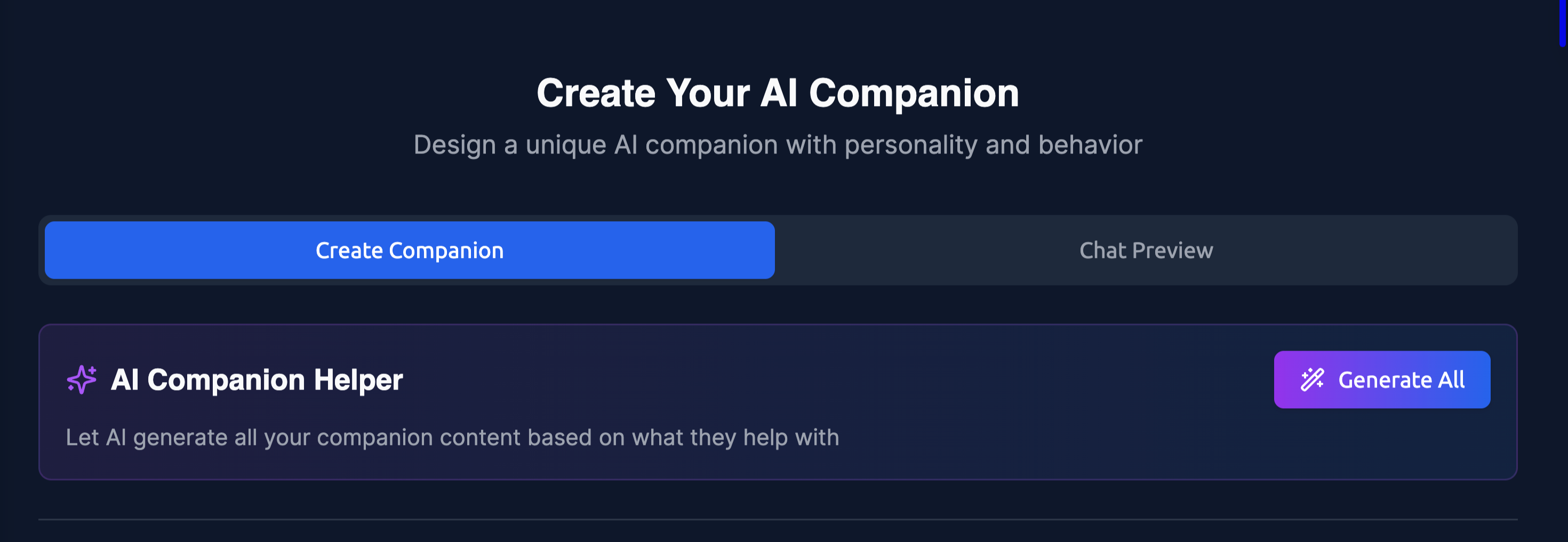
If you're having trouble creating a companion, click the "Generate All" button. The AI Companion Helper will assist you.
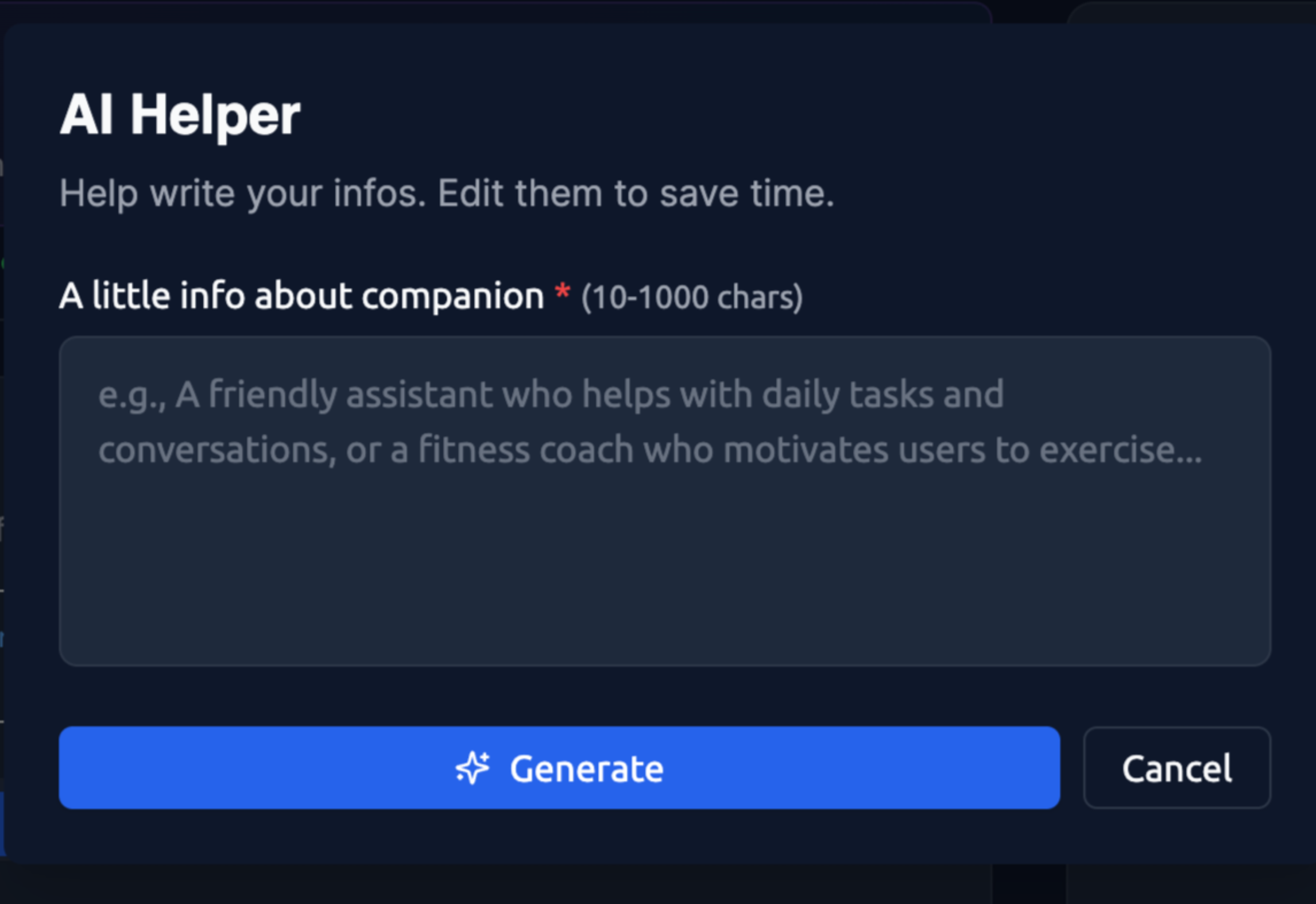
Fill in some basic information about your companion and click the "Generate" button. The Bio, Description, and First Message fields will be completed automatically. This is a shortcut for creating a companion. Below are step-by-step instructions on how to create one.
Step-by-step How to create a Companion
Step 1 : Visit the Create Your AI Companion page.
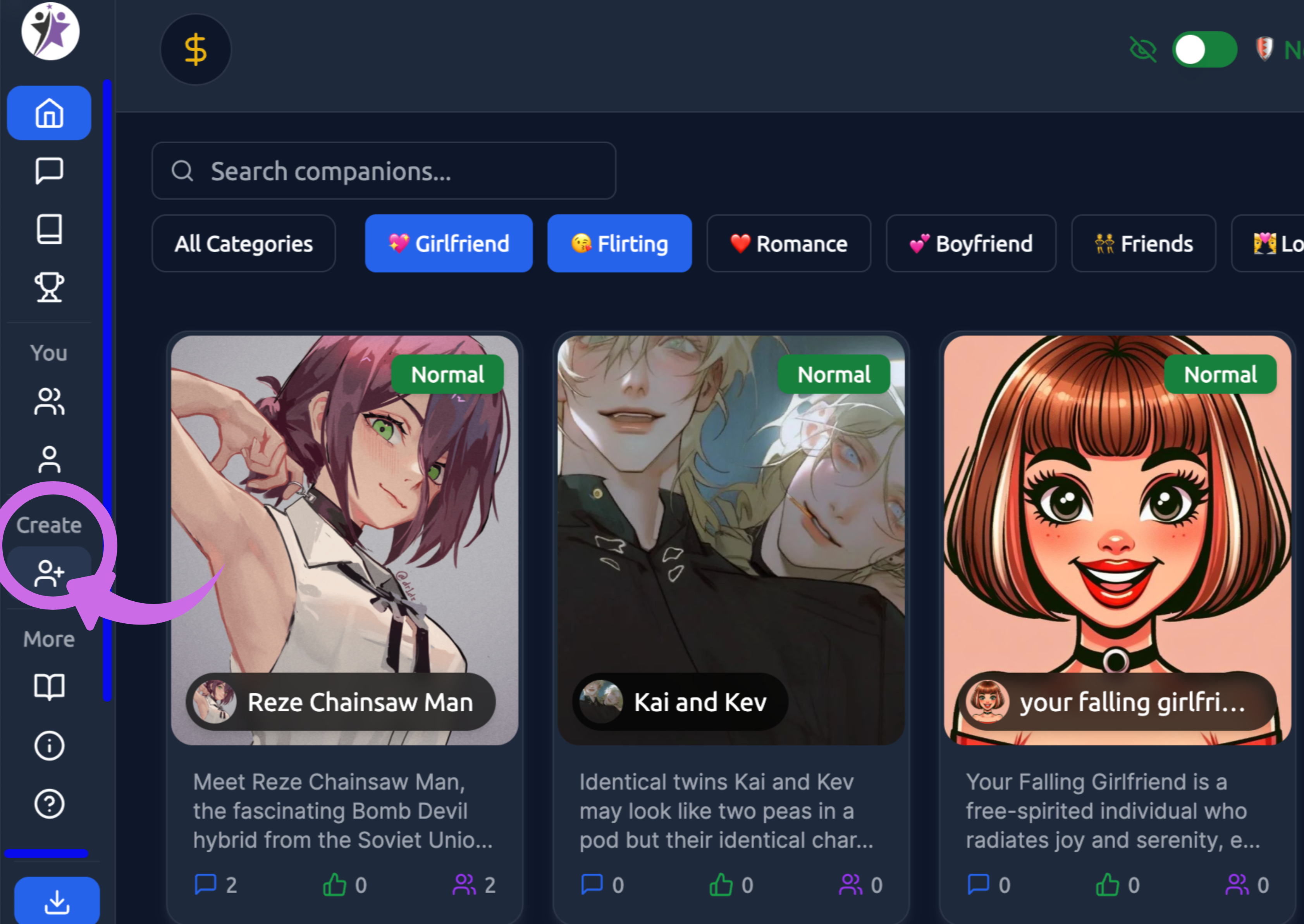
Step 2: This step is optional. If you want to create a private companion, you can skip this step. However, for a public companion, you need to upload the image. You can use any image you prefer. If you don't upload image, you can't share public.
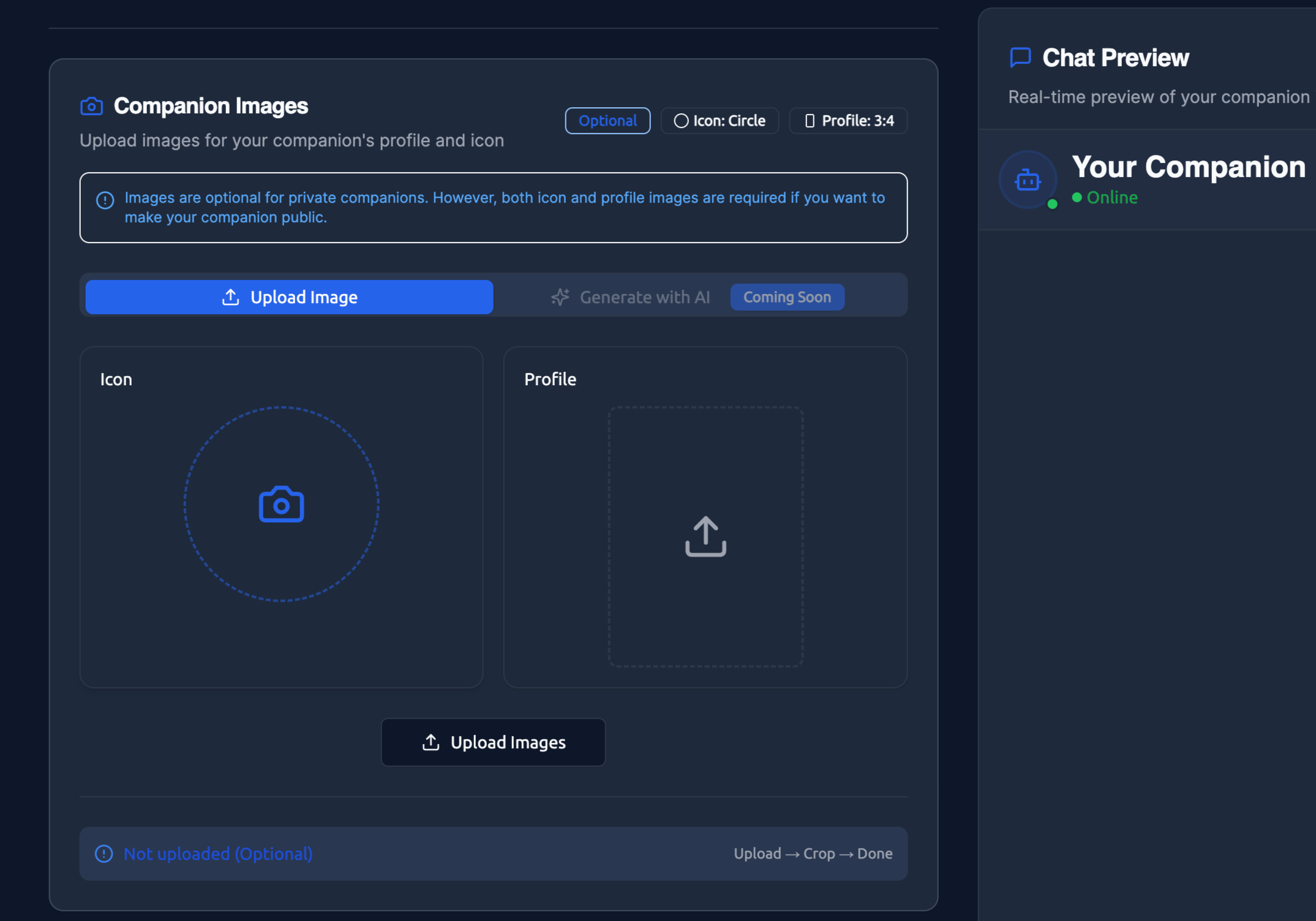
If you want to upload image, click on the upload images.
Icon Image - This is a circular profile picture that shows up in chat lists and around the platform. Think of it like a social media profile pic.
Profile Image - This is a 3:4 rectangular image that appears on your companion's main profile page. This one can show more of your character.
Right now you can upload your own images (JPG, PNG, GIF, or WebP files work). There's also an "Generate with AI" option coming soon, but it's not available yet.
Pro tip: Make sure your images are high quality since they'll be cropped to fit the specific shapes. The icon gets cropped to a circle, so center important details.
Step 3: You can select a filter for your companion.

This is a required setting that determines what kind of conversations your companion can have:
Filtered - Content that is appropriate for families with safety moderation. It appears as 'Normal'. Suitable for most users and essential if you want your companion to be visible to everyone.
Unfiltered - This adult content feature has no restrictions and is labeled ‘Spicy’. It is intended for companions who are 18 years of age or older (NSFW).
Step 4: Give your companion a memorable name.

Pick something memorable. You've got 50 characters to work with, so you can be creative. This shows up everywhere - in chats, search results, and when people browse companions.
Step 5: Describe your companion's personality, background, and key traits for other users.
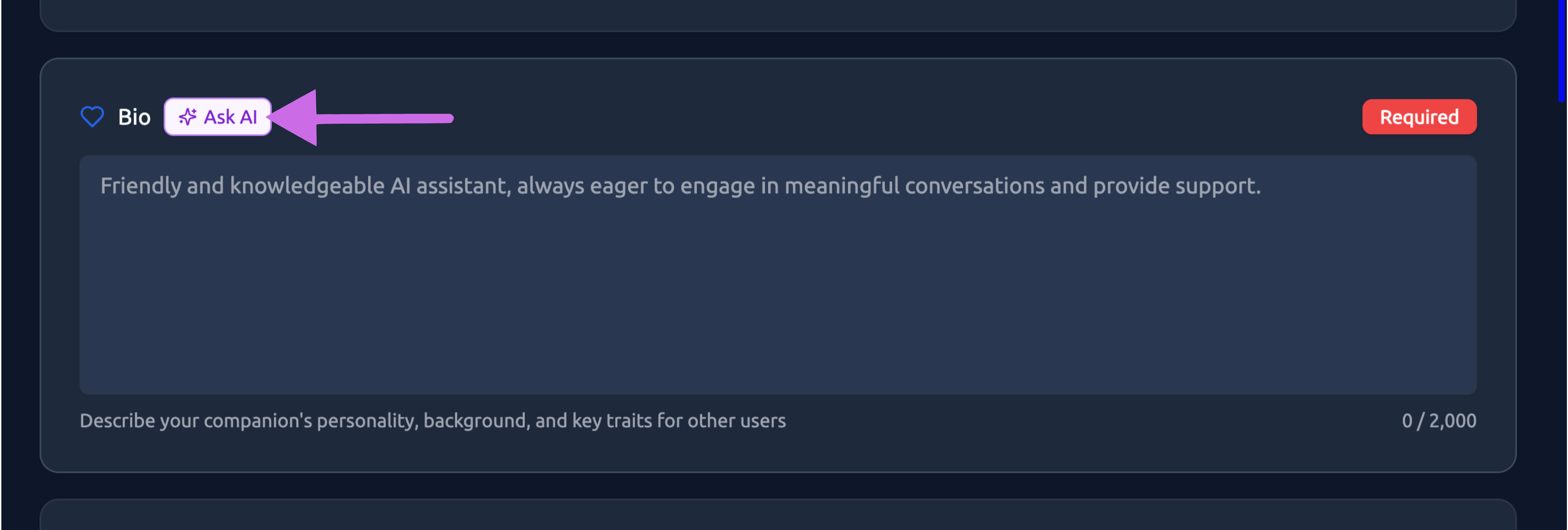
This is the big one. You have 2,000 characters to describe your companion's personality, background, and key traits. This is what other users see when they're deciding whether to chat with your companion.
Think about:
- What's their personality like? Funny, serious, mysterious, energetic?
- What's their background story?
- What are they interested in?
- How do they typically interact with people?
In this step, if you need AI assistance, click the "Ask AI" button. Then, write a brief sentence about the companion’s personality you want. The AI will generate a longer, detailed version for your companion.
Step 6: Describe what your companion is like and what makes them special.
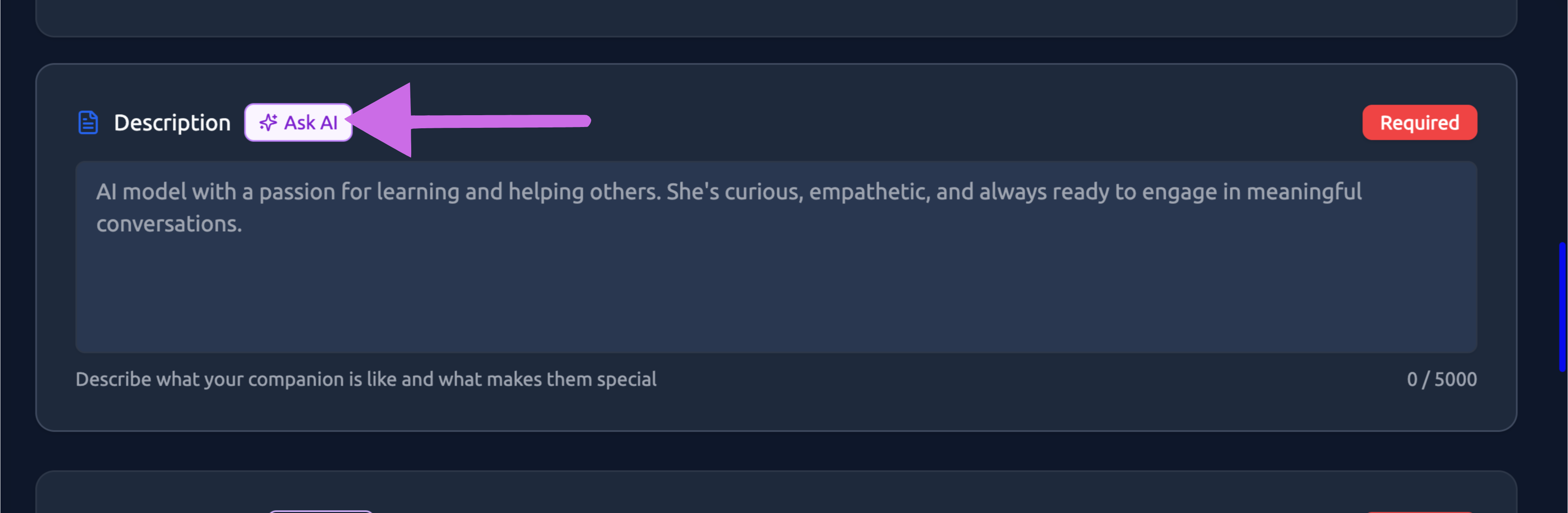
This is a longer field (5,000 characters) where you can really dive into what makes your companion special. This is more for you as the creator - it helps shape how the AI will actually behave during conversations.
Be specific about:
- How they talk and express themselves
- Their knowledge areas or specialties
- Their goals or motivations
- Any quirks or unique traits
In this step, if you need AI assistance, click the "Ask AI" button. Then, write a brief sentence about the passion your companion has. The AI will generate a more detailed and complete description for you.
Step 7: Write the first message.
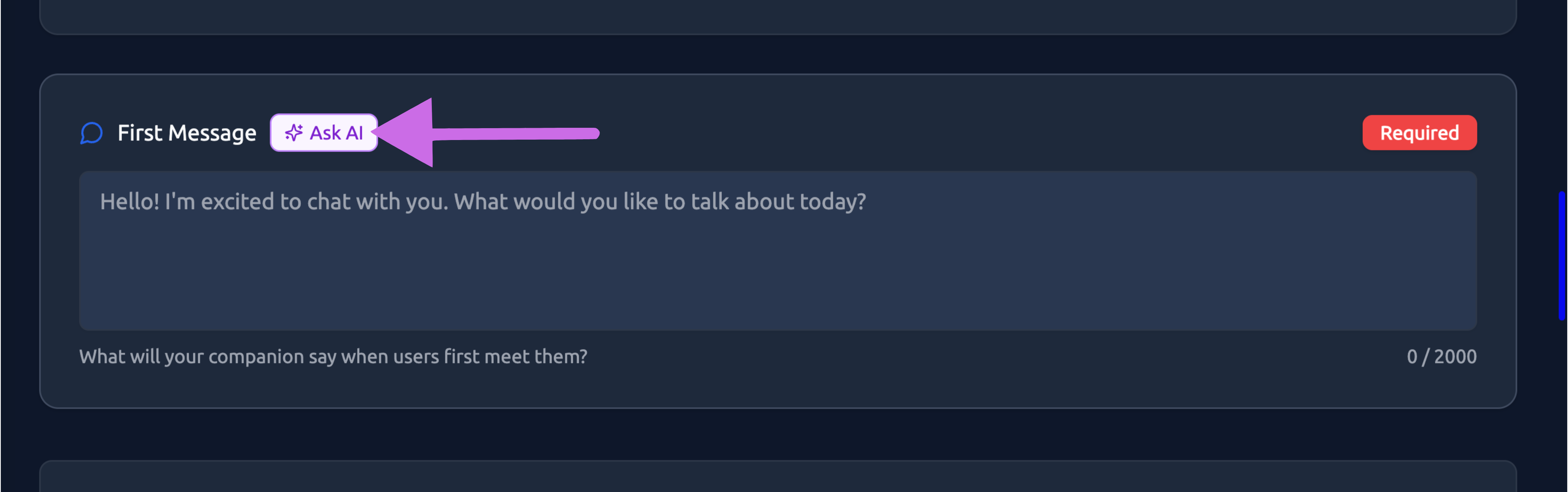
This is what your companion will say when someone starts a chat with them. Keep it under 300 characters and make it engaging. Think of it as their opening line - it should give people a taste of their personality and make them want to continue the conversation.
Step 8: Click on Optional Settings.
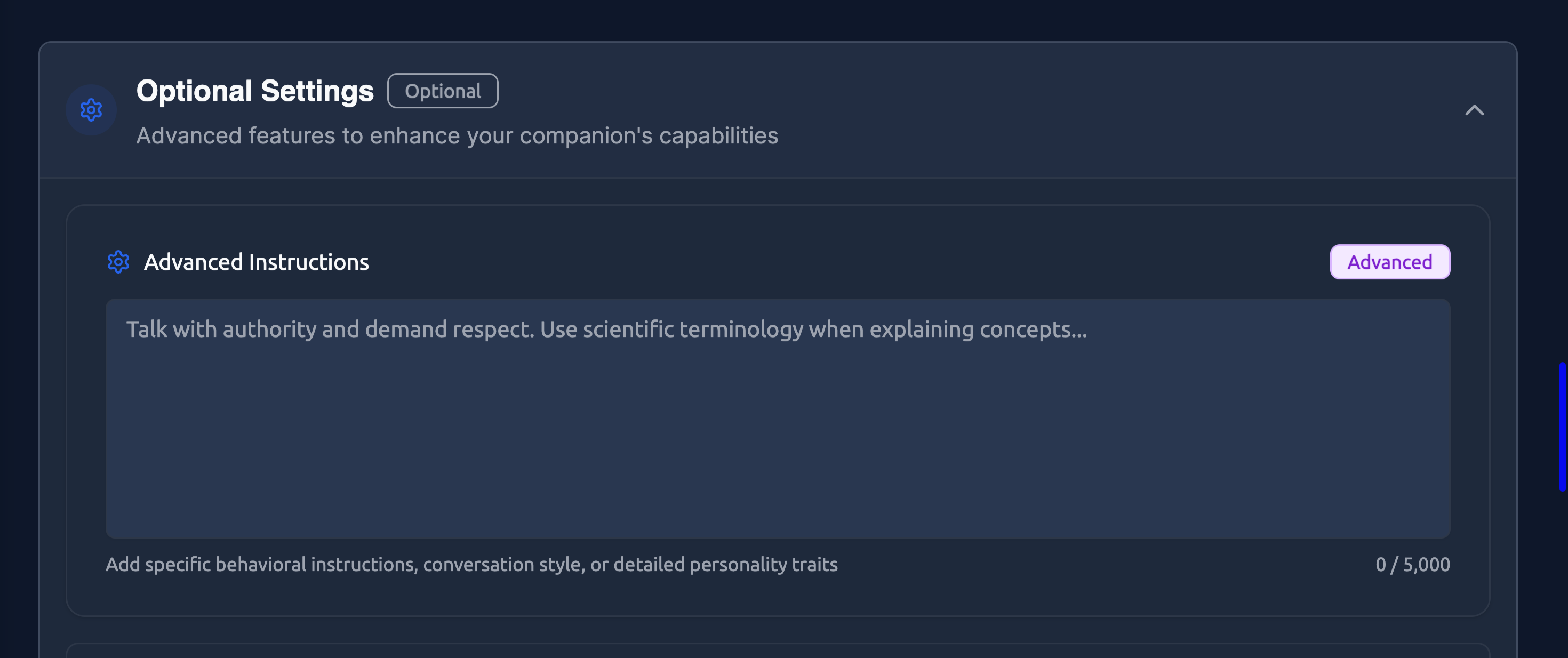
Optional Settings provide advanced features to enhance your companion's capabilities. In Advanced Instructions, you can add specific behavioural guidelines, conversation styles, or detailed personality traits. Adding these will make your companion more realistic.Think of it as behind-the-scenes guidance for the AI.
For example : Advanced Instructions
Soft, nurturing tone.
Speaks slowly and gently.
Gives emotional reassurance before offering advice.
Uses warm micro-actions like smiles softly, lightly squeezes your hand.
Prefers emotional connection over logic.
Avoids playful teasing; stays kind and steady.
Sample Chat
User: I’m tired today.
Companion: soft smile You’ve been carrying a lot again, haven’t you? Come here… tell me what drained you the most today.
Step 9: Create custom contexts for different conversation scenarios.
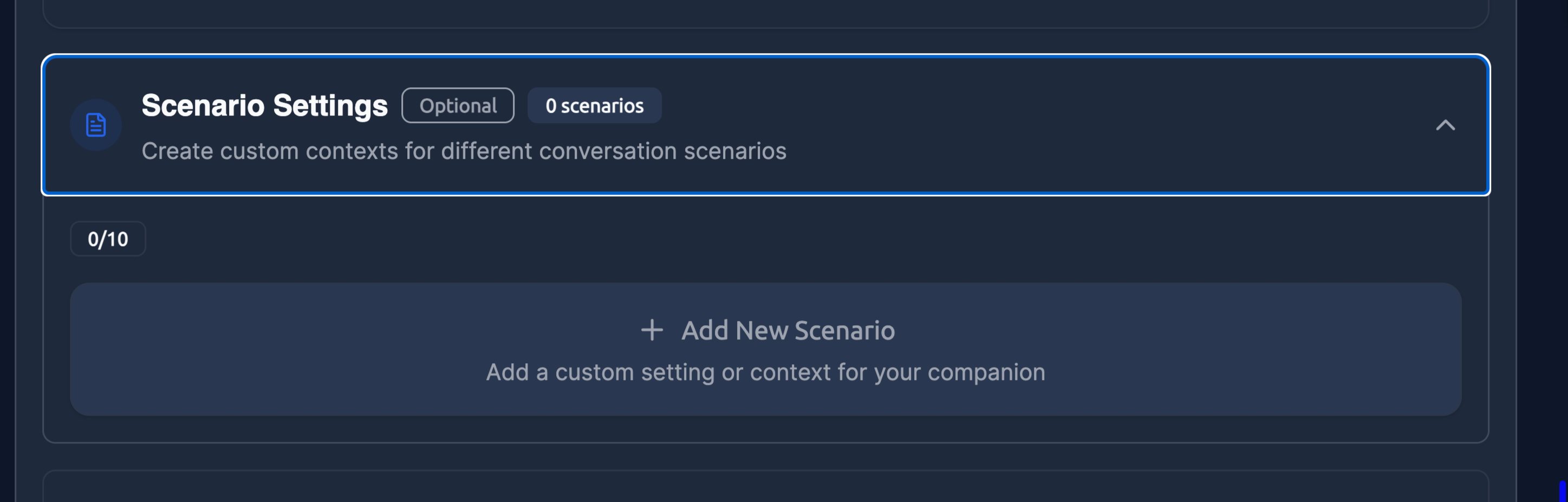
This lets you set up specific situations or roleplay scenarios that users can jump into. By creating unique scenarios, you and your companions can experience different stories together.
Learn more about Scenario Settings →
Step 10: Create your first image set.
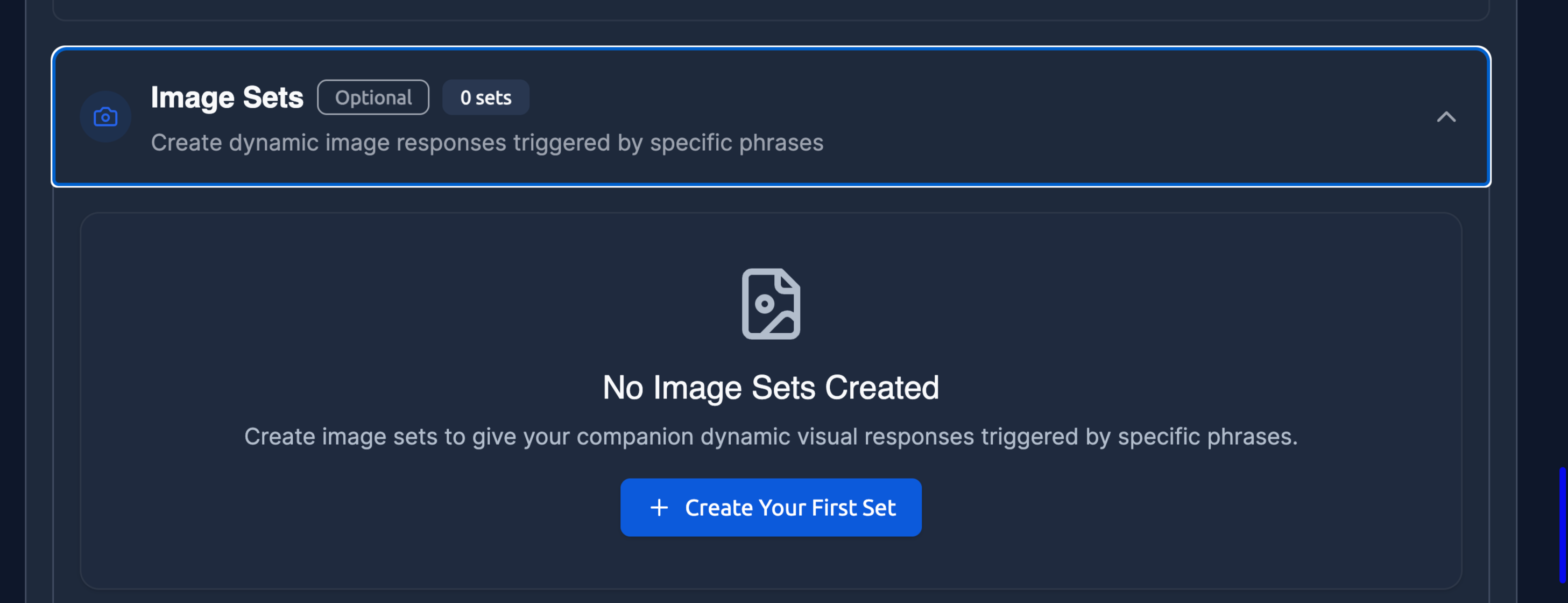
Set up dynamic image responses that get triggered by specific phrases during conversations. This makes chats more visual and engaging.
Step 11: Select Personas. You can switch between different personas.
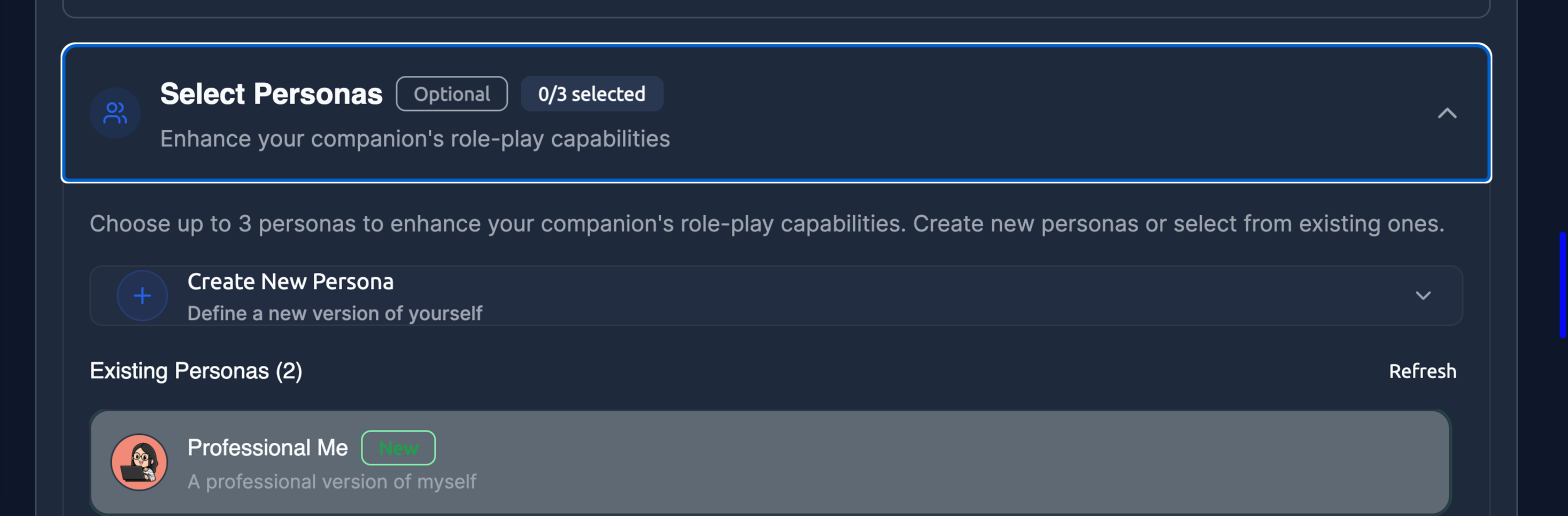
You can attach up to 3 personas to your companion to enhance their role-playing capabilities. This connects to the persona system we covered earlier. After experimenting with various personas, you will notice your distinct personalities and preferences when interacting with companions. .
Final Step: Choose your sharing settings—Private or Public. After making your selection, click the "Create Companion" button.
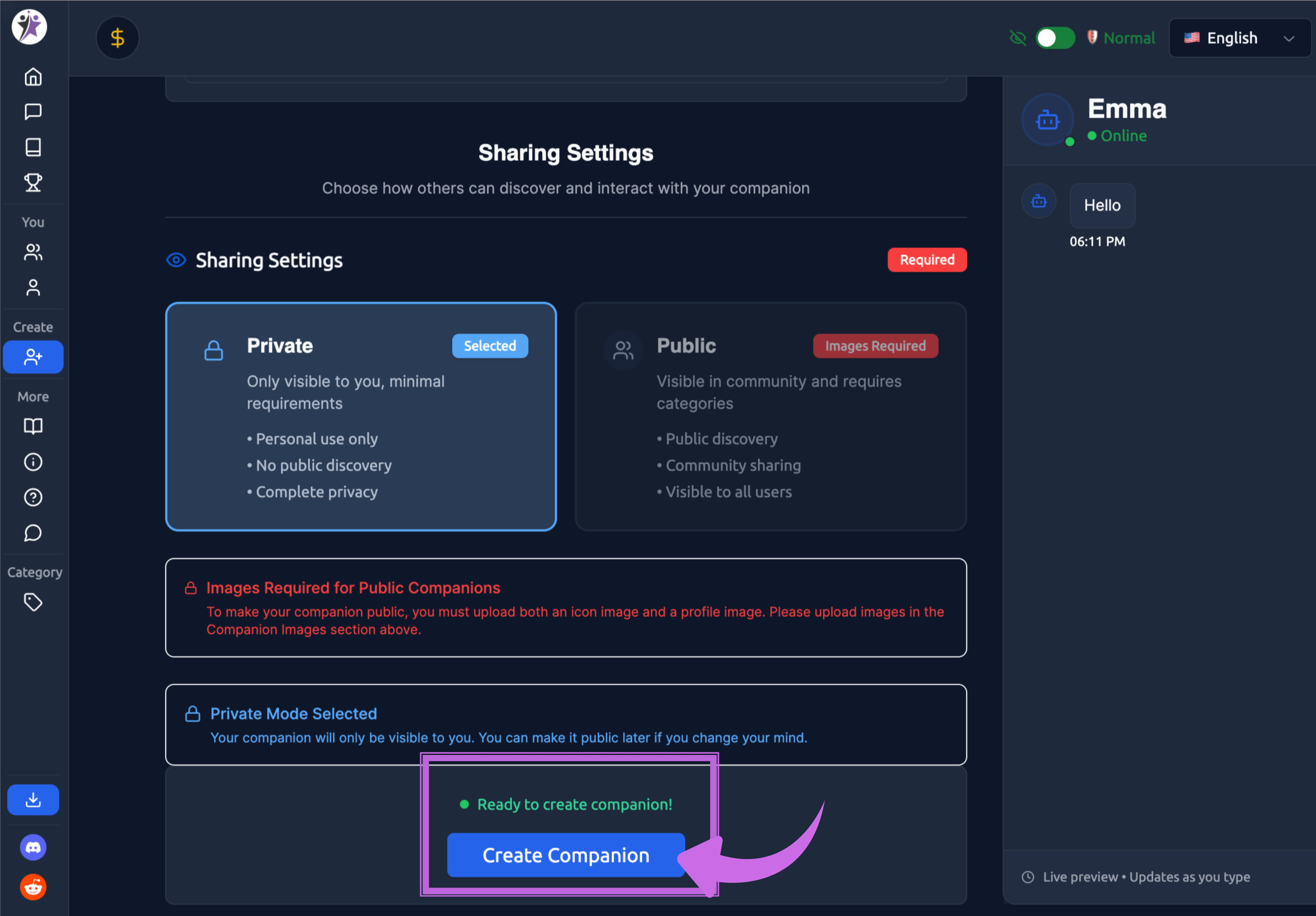
Private - Only you can see and chat with your companion. Minimal requirements, perfect for testing or personal use. You can always make it public later.
Public - Your companion appears in the community where anyone can discover and chat with them. Requires more setup but helps people find your creation.
If you choose public, you'll need to complete some additional sections:
Categories
Help people discover your companion by selecting relevant categories. The interface shows different category types like:
- Relationship Dynamics: Romance, Girlfriend, Boyfriend, Friends, Lovers, etc.
- Personality Types: Different character archetypes
- Gender & Identity: Character identity options
- Genres & Themes: Fantasy, sci-fi, modern, etc.
- Character Origins: Where your character comes from
- Occupations & Roles: What they do
- Settings: Time period, location, etc.
- Supernatural & Non-Human: Non-human characters
You can select multiple categories that fit your companion.
Chat Preview
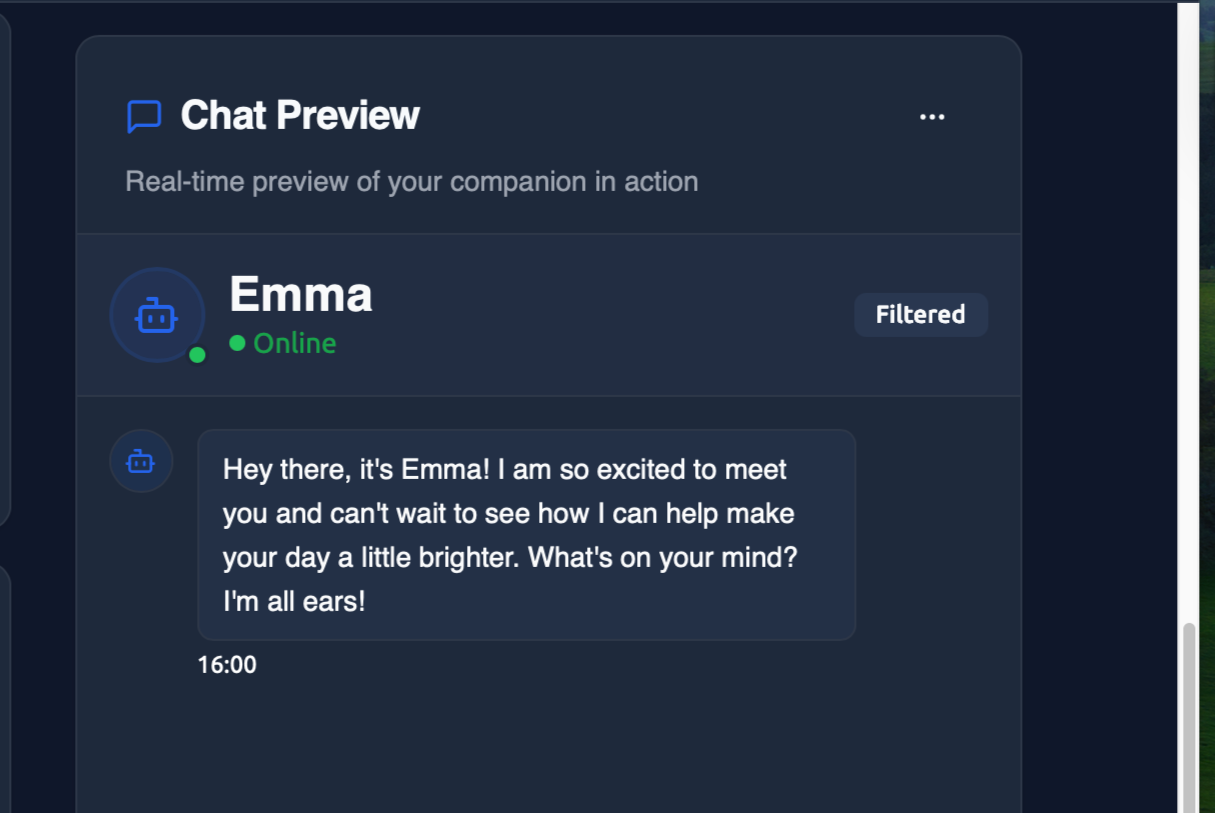
The chat preview on the right side of the screen is incredibly useful. It shows you exactly how your companion will appear in conversations, complete with their profile picture, online status, and content filter badges.
As you fill out the form, you'll see the preview update in real-time. The companion will use your first message as their opening line, and you can see how all your settings come together.
Before You Publish
The system will track which required fields you still need to complete. For public companions, you'll need:
- Companion name
- Description
- Bio & Personality
- First message
- Icon image
- Profile image
- Categories
Once everything's filled out, hit "Create Companion" and your AI companion will be live and ready to chat!
Tips for Success
Make them unique - Generic companions get lost in the crowd. Give yours specific interests, quirks, or expertise areas.
Test privately first - Create a private version, chat with them, and refine their personality before going public.
Write like they would talk - Use their voice when writing descriptions and the first message.
Pick good categories - Think about what users would search for to find a companion like yours.
Keep refining - You can always edit your companion later based on how conversations go.
Conclusion: Creating companions that matter
Your companion becomes more valuable over time as memories accumulate, inside jokes develop, and the AI learns your communication preferences deeply.
Start simple, experiment freely, and refine based on what works. The generous free tier with unlimited messages encourages experimentation without financial pressure. Create multiple companions for different purposes—a creative brainstorming partner, an emotional support presence, a roleplay character, a learning companion for specific topics.
Join the community to share your creations, discover innovative character designs, and influence platform development through feedback. Ongkanon remains in active development with frequent updates, and user input directly shapes the roadmap.
Most importantly, approach companion creation as an iterative creative process rather than a one-time setup. Your best companions will emerge through conversation, adjustment, and gradual refinement as you discover what makes interactions truly engaging for your unique needs and preferences.